test
this is test

this is test
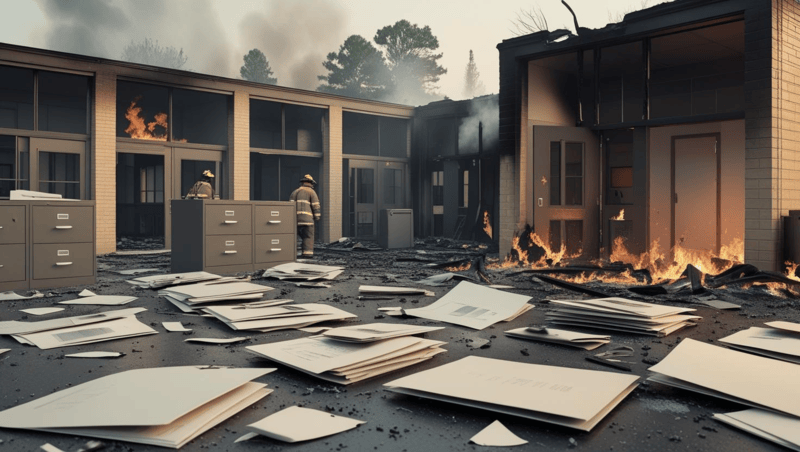
In the wake of devastating events like the Palisades Fire and the Eaton Fire, communities in Los Angeles witnessed the heartbreaking loss not only of physical school structures but also of decades of educational heritage.
Institutions such as St. Matthew’s Parish School, Village School, Pasadena Waldorf School, and Eliot Arts Magnet Academy saw more than classrooms reduced to ash—they lost student yearbooks, graduation records, faculty rosters, student transcripts, school newspapers, event photographs, alumni directories, and historical enrollment data that tell the story of every generation that passed through their doors.\
Click to get an update on the Southern California fires and Their Impact
These aren’t just files—they’re community memory, critical for alumni identity, historical research, accreditation documentation, and intergenerational connections. As natural disasters grow more frequent, so does the risk of losing this irreplaceable information.
That’s where eRecordsUSA steps in. As a trusted partner of the Los Angeles Unified School District (LAUSD) and a digitization specialist, eRecordsUSA is committed to preserving California’s school legacies. Through the digitization of fragile and archival documents—including complete yearbook collections, administrative files, student assessments, and even PTA meeting minutes—schools like Paul Revere Charter Middle School, Palisades Charter High School, and Polytechnic School have turned their paper-based history into searchable, cloud-accessible digital archives.
When students are asked to bring in their old yearbooks, it’s not just for sentimental value—it’s about safeguarding a school’s cultural and academic legacy. Yearbooks, student publications, report cards, class rosters, and archival photographs represent far more than memories; they are official records of student life, identity, and achievement.
These documents form a living history that reflects the academic rigor, social dynamics, and community evolution captured within a school’s walls. From Board of Education-mandated documentation to PTA-driven school newsletters, every archived piece contributes to a larger narrative of educational impact.
In the wake of tragedies like the Palisades and Eaton Fires, the role of recovered student contributions becomes crucial. Donated materials—such as yearbooks, classroom photos, and club directories—are helping to reconstruct what was lost. Each recovered record supports the Los Angeles Unified School District (LAUSD) and its affiliated schools in their efforts to preserve institutional memory.
Preserved digitally through partners like eRecordsUSA, these records serve broader, future-oriented functions:
Without digitization, many of these analog materials face natural degradation—fading ink, brittle paper, and storage limitations make them increasingly vulnerable, even without a catastrophic fire.
As students and schools rally to reconstruct their historical collections, the fragility of physical archives becomes painfully evident. Whether tucked away in administrative offices or basement storage rooms, paper-based materials remain susceptible to a long list of threats, including wildfires, water damage from sprinklers, earthquakes, mold, and even the passage of time itself.
In the case of the Palisades Fire, entire campuses were reduced to ashes, taking with them decades of unscanned transcripts, faculty rosters, student publications, and photographic negatives. These tangible links to the past are often irreplaceable without a digital backup. Moreover, physical yearbooks and school records are difficult to access and share:
Digitization is not simply a modernization tactic—it is a defensive strategy against future loss and a proactive way to ensure democratized access to school legacies. That’s why eRecordsUSA stepped in—not just as a service provider, but as a partner in safeguarding history.
At eRecordsUSA, we recognize that when physical archives are lost to disasters, digital preservation becomes the last—and often only—lifeline for institutional memory. That’s why we’ve made it our mission to help schools, public and private districts, academic institutions, historical societies, museums, government agencies, libraries, and community organizations protect their archival records and institutional memory for future generations.
We don’t just scan—we preserve, catalog, and future-proof valuable content. Here’s how we do it:
In partnership with Paul Revere Charter Middle School and Palisades Charter High School, part of the Los Angeles Unified School District (LAUSD), we recently helped rebuild their historical yearbook archive. This effort not only recovered irreplaceable records but also created a resilient digital library now immune to fire, water, or time.
In collaboration with the Los Angeles Unified School District (LAUSD)—one of the largest and most culturally diverse districts in the U.S.—eRecordsUSA has worked to ensure the preservation of student memories and institutional heritage, especially in the wake of disasters like the Palisades and Eaton Fires.
This partnership reflects a shared mission: to safeguard student records, academic history, and archival content that might otherwise be lost to fire, time, or decay. Through this initiative, eRecordsUSA has:
By building this framework with LAUSD, eRecordsUSA offers a proven model for other districts seeking long-term solutions for digital resilience.
In a region as wildfire-prone as Southern California, preserving the academic and cultural legacy of schools is no longer optional—it’s essential. Fires like those in Palisades and Eaton have proven just how vulnerable physical archives are. But through strategic partnerships, like the one between eRecordsUSA and LAUSD, districts can safeguard irreplaceable records and student history with purpose-driven digitization.
At eRecordsUSA, we understand that behind every yearbook is a story, a face, a milestone worth preserving. Our secure, FERPA-compliant digitization services empower schools not only to recover from loss but to build a resilient foundation for the future.
🔍 Interested in protecting your school’s historical records?
Contact us to schedule a consultation and explore how we can support your district’s digital preservation goals.
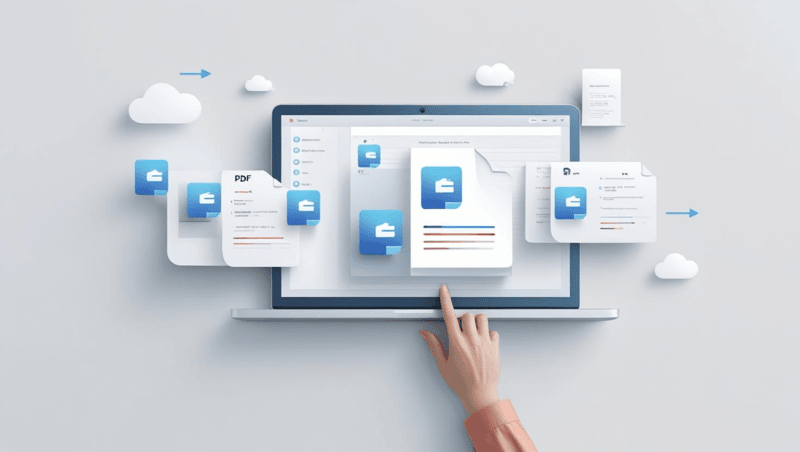
Over 68% of enterprises have digitized their document workflows, with 72% utilizing PDF tools for secure document handling and 64% demanding collaborative PDF editing solutions.
Online PDF merging tools make it easy to combine documents without installing software. However, if your process starts with physical papers, digitizing them into searchable, high-quality PDFs is the first essential step. This is where eRecordsUSA excels—providing professional document scanning, OCR services, and compliant digital conversion for industries like healthcare, legal, and government.
In this guide, you’ll learn:
So, let’s explore the step-by-step procedure to merge PDF files online along with the must-have features.
Below is a step-by-step guide followed by the most important features to consider when selecting a PDF merging tool.
Before you decide which PDF merging tool to use, it’s important to evaluate which features truly matter for your specific needs. While the merging process is usually simple, choosing a tool with the right capabilities can save time, protect sensitive information, and ensure a professional outcome.
Cross-check whether your shortlisted online PDF merging tool have all the below-listed features:
Now that you know what to look for in a reliable PDF merging tool, it’s helpful to compare some of the most popular platforms available today. Each option offers different strengths, depending on whether you need basic merging functionality, advanced features, or privacy-focused solutions.
Below is a breakdown of the best free tools to help you choose the right PDF combiner for your workflow.
| PDF Tool | Key Features | Pros | Cons | Best For |
|---|---|---|---|---|
| Smallpdf | Drag-and-drop, cloud support, file format mixing | Intuitive UI, mobile-friendly, fast | Limited free usage, upsells for advanced features | General users needing quick merging |
| iLovePDF | All-in-one toolset, integrates with cloud platforms | Offers compression, editing, and conversion in one | Ads, size limits on free tier | Users wanting an all-purpose solution |
| Adobe Acrobat | Brand trust, secure, integrates with Adobe tools | Professional quality, reliable | Requires sign-in, limited free tools | Adobe ecosystem users |
| PDF24 Tools | Desktop version, offline merging, privacy focus | Free desktop version, auto-deletion of files | Less polished UI, fewer extras | Privacy-focused and offline users |
If you’re handling more than just basic digital files such as large document sets, scanned images, or materials that require indexing, consider preparing your PDFs in advance for the best merging outcome. Starting with clean, well-organized digital files can significantly improve merging accuracy and reduce errors.
For businesses dealing with complex documentation, having a reliable pre-merging workflow in place helps ensure everything aligns smoothly before combining files online.
While merging PDF files online is typically straightforward, overlooking key steps can lead to misplaced pages, formatting issues, or unintended data exposure. Moreover, about 75% of data breaches related to document sharing are attributed to inadequate PDF data management practices.
This indicates the importance of implementing the below-discussed best practices for merging PDFs that can help ensure your merged PDFs are accurate, professional, and secure.
Merging PDF files online is a fast and practical way to streamline document management. Whether you’re combining reports, contracts, or forms, using the right PDF tools ensures accuracy, security, and convenience. Start with clean, searchable PDFs, especially if you’re working from physical documents and choose platforms that align with your privacy and formatting needs. If your documents begin in paper form or require OCR before merging, partner with a professional digitization service provider like eRecordsUSA to prepare them properly.
| How do I split a PDF file into multiple parts? | Upload it to a PDF splitter tool, select page ranges, and export separate files. Use tools like Smallpdf or Adobe Acrobat Online for accurate page separation. |
| Can I merge password-protected PDFs? | You must first unlock them using a secure unlock tool, then merge. Encrypted files can’t be combined unless the password is removed. |
| What is the maximum file size for merging PDFs online? | Most free tools allow 50 to 100 MB per session. Use premium plans or offline tools like PDF24 or Adobe Acrobat for larger files. |
| Can I merge PDFs and images together? | Yes, tools like Smallpdf convert images (JPG, PNG) into PDF pages and combine them with your existing PDFs. |
| Is it safe to upload confidential documents to online mergers? | Choose services with SSL encryption and auto file deletion. For sensitive data, offline tools or secure enterprise solutions are safer. |
| How do I rearrange pages within a PDF before merging? | Upload to an editor like Sejda or iLovePDF, reorder using the preview pane, save, and then proceed with the merge. |
| What’s the best way to compress a merged PDF file? | Use PDF compressors like ILovePDF or Adobe Compress to reduce file size while preserving content quality. |
| Can I merge PDFs on my smartphone? | Yes, mobile apps like Adobe Acrobat, Smallpdf, and iLovePDF let you merge PDFs on both Android and iOS devices. |
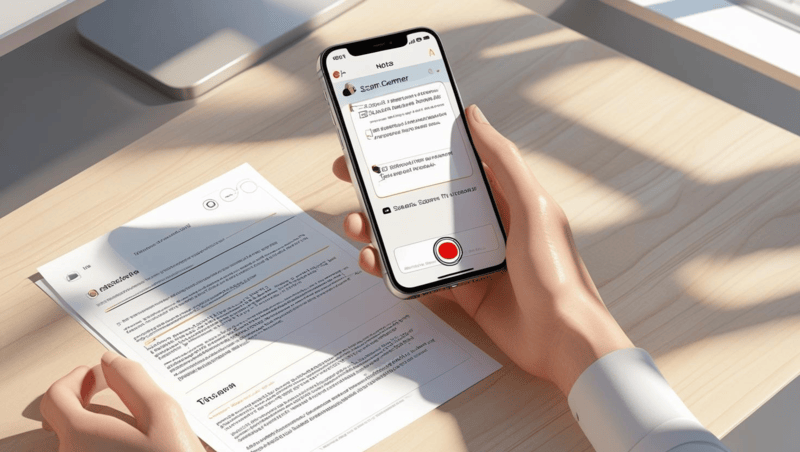
“How can I scan a document to PDF and save it directly to my iCloud Drive without using any third-party app?”
If this sounds like something you’ve asked or Googled you’re not alone.
With more users managing work, school, and personal records from their smartphones, the ability to scan documents straight into PDF format using an iPhone has become essential. And the best part? You don’t even need to download anything.
Thanks to the built-in Notes App and Files App, scanning is now natively supported on all modern iPhones. These tools allow you to:
In this guide, we’ll walk through the exact steps and advanced options to handle questions like:
You’ll also learn when your iPhone is enough and when a professional scanning partner like eRecordsUSA is your best bet for large-scale, secure, or compliance-driven document digitization.
Turn your iPhone into a powerful document scanner using built-in tools or advanced apps.
Below are three simple methods to scan and save your documents directly as PDFs – fast, clean, and paper-free.
Now that we know scanning is built right into iOS, let’s start with the most accessible option: the iPhone’s built-in Notes App.
It’s free, pre-installed, and integrates directly with iCloud and the Files app, making it ideal for quick, clean scans that you can save or share as PDF files instantly.
While the Notes app is perfect for casual use, what if you want to scan a document and immediately store it in a specific folder on your device or cloud drive—without needing to open Notes at all? That’s where the Files App comes in.
If you’re looking for a more file-centric workflow where scans go straight into a specific folder on your device or in the cloud, the Files App is your best option.
Unlike Notes, this method bypasses note creation and saves your scanned PDF directly where you want it, whether iCloud Drive, Dropbox, or “On My iPhone.”
While Apple’s built-in tools are perfect for quick scans, what if you need more like OCR, batch processing, or edge-enhancing AI? That’s where professional-grade apps like Adobe Scan come in.
For users who want more than just basic scans—like optical character recognition (OCR), auto-cropping, and advanced file editing—Adobe Scan is the go-to choice. Available for free on the App Store, it’s ideal for creating searchable, shareable, and high-resolution PDFs right from your iPhone.
Now that you’ve explored the three main scanning methods, let’s go one level deeper into expert tips that can help you capture crisp, clean scans every time, whether you’re digitizing a receipt or a 10-page form.
No matter which method you choose, the quality of your scan depends largely on your environment and technique. Whether submitting a legal form or archiving a multi-page report, these pro-level tips ensure your iPhone scans are sharp, readable, and professional.
Getting a clear and readable scan isn’t just about the app you use; it’s also about how you take the scan. If your documents look blurry, cropped poorly, or hard to read, try these quick fixes.
Now that your scans are sharp and professional-looking, let’s explore how to rename, organize, and mark up your PDF files so they’re easy to find and ready to send.
Once you’ve scanned your document, the next step is to ensure it’s named correctly, stored in the right place, and ready to be shared or signed.
Thankfully, your iPhone gives you all the tools you need.
If you’ve ever struggled with blurry scans, missing files, or saving issues, you’re not alone. In the next section, we’ll walk through common problems people face while scanning and how to fix them fast.
Even with the best tools, things don’t always go smoothly. If your scan didn’t turn out the way you expected, here are the most common problems and how to fix them quickly.
Scans look blurry. This usually happens when your lighting is uneven or your iPhone isn’t steady. Try scanning in brighter light and hold your phone flat and still.
Pages are cut off or crooked. Make sure the document is flat and not folded. Use a high-contrast background so your iPhone can detect the edges correctly.
You can’t find your scanned PDF. If you scanned with the Notes app, your file is saved inside the note. To export it, tap the scan > share icon > Save to Files. If you used the Files app or Adobe Scan, check the selected folder.
The file is too large to email. Re-scan using grayscale or black-and-white filters. You can also compress the PDF using Adobe Acrobat Online or similar tools.
Auto-capture doesn’t work. If your iPhone won’t trigger the scan, move the document slightly, ensure there’s good lighting, or switch to manual capture.
At this point, you know how to scan, clean up, organize, and troubleshoot your documents. But what if you’re dealing with stacks of legal files, books, or oversized blueprints? That’s when it’s time to bring in expert help.
When to Use Professional Scanning Services like eRecordsUSA?
Your iPhone is powerful, but it’s not built for everything. If you’re dealing with fragile documents, high volumes, or compliance-heavy files like medical records or legal paperwork, a professional scanning service is a smart choice.
eRecordsUSA is a trusted document scanning partner offering high-speed digitization for businesses, law firms, healthcare providers, government agencies, and more. Our team uses secure, enterprise-grade equipment like Kodak and Epson scanners that capture documents in crisp, searchable PDF format.
We also specialize in:
If you’re handling cabinets full of documents, or need a full digital transformation project, eRecordsUSA can digitize, index, and organize everything then deliver your files securely via cloud or hard drive.
Whether you’re scanning a single receipt or managing an archive of legal files, your iPhone is a powerful tool for turning paper into PDFs. With built-in apps like Notes and Files, and enhanced tools like Adobe Scan, you can digitize, organize, and share documents in seconds—anytime, anywhere.
For quick everyday use, the steps in this guide will help you scan clearly, name files properly, and share them with confidence.
But when the job is bigger or requires security, compliance, or archival-level quality, eRecordsUSA is here to help.
From oversized blueprints to fragile books, they provide fast, accurate, and secure document scanning services trusted by businesses across the U.S.
Now it’s your turn:
Need help with bulk scanning or compliance-focused digitization? Get in touch with eRecordsUSA to request a quote or free consultation.
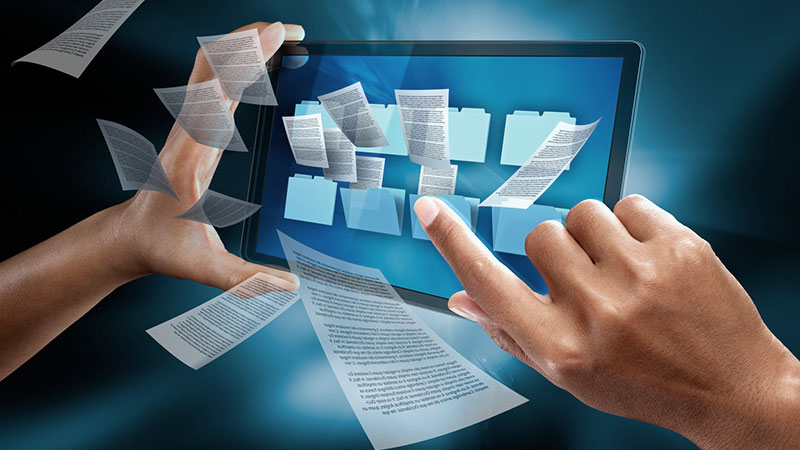
Have you ever searched for a word inside a scanned PDF and found nothing?
That’s because many PDFs, especially those generated from scanned documents, are essentially image files. They contain visual representations of text but no actual characters that can be searched, copied, or indexed.
This limitation affects everything from basic keyword lookup to document retrieval, making the file nearly invisible to search engines and inaccessible for users relying on digital tools.
This is where Optical Character Recognition (OCR) comes in. OCR is the technology that converts image-based content into searchable text, enabling full-text search, copy-paste functionality, and screen-reader compatibility.
Tools like Adobe Acrobat, Google Drive OCR, and Tesseract make it possible to transform scanned documents into searchable PDFs, enhancing usability and accessibility.
Did you know that the global Optical Character Recognition (OCR) market was valued at $13.95 billion in 2024 and is projected to reach $46.09 billion by 2033, growing at a 13.06% CAGR?
If you’re looking for a hassle-free way to make PDFs searchable, eRecordsUSA offers professional document scanning and OCR services that convert your static PDFs into intelligent, searchable files.
Whether you’re dealing with legal files, medical records, or large-scale archives, our solutions ensure accuracy, security, and compliance. With advanced OCR processing and high-resolution scanning, eRecordsUSA helps businesses unlock the full potential of their documents with precision and speed.
In this step-by-step guide, you’ll learn how to make your scanned PDFs searchable using professional services, software tools, and mobile applications – all tailored to improve document management and digital accessibility.
Ready to get started? Let’s walk through the exact steps to make your PDFs searchable using today’s best tools and methods.
This guide will walk you through multiple methods of converting a scanned or image-based PDF into a searchable PDF.
Adobe Acrobat Pro DC remains one of the most robust and reliable tools to make PDFs searchable. Here’s how you can do it:
Acrobat’s OCR engine ensures high accuracy and maintains formatting, making it ideal for business-critical documents. It also supports batch OCR, advanced language detection, and high compatibility across all major web browsers.
Google Drive includes a built-in OCR feature when opening PDFs with Google Docs.
While this method is free and convenient, formatting may be affected, especially with complex layouts.
Tesseract is an open-source OCR engine ideal for those comfortable with command-line tools.
Tesseract supports over 100 languages and is highly customizable but requires technical knowledge to operate effectively.
If you’re looking for a quick solution without installation, tools like Smallpdf, PDF2Go, and iLovePDF offer cloud-based OCR processing.
These tools are convenient, but always verify their data security policies before uploading sensitive documents.
Apps like Adobe Scan, Microsoft Lens, and CamScanner provide built-in OCR while scanning.
These apps are ideal for quick digitization needs, especially when traveling or working remotely.
Want the accuracy of Adobe with the convenience of cloud-based tools?
eRecordsUSA offers professional OCR services to make PDFs searchable with the highest fidelity. We handle everything from large document batches to sensitive compliance-driven archives, ensuring your files are secure, accessible, and easy to manage.
Now that you’ve seen how to make PDFs searchable using different tools, you might be wondering what exactly is happening behind the scenes.
Earlier, we mentioned that Optical Character Recognition (OCR) is the technology that transforms scanned PDFs into searchable documents. If you’re curious about how that transformation actually happens beyond just clicking “Recognize Text.”
Here’s a quick overview.
OCR tools follow a structured process that includes image cleanup, text detection, and embedding a hidden searchable layer into your PDF.
This process allows functions like Ctrl+F, copy-paste, and screen-reader accessibility to work seamlessly on previously static documents.
Want the full technical breakdown? Dive deeper into the step-by-step workflow in our dedicated article:
👉 How OCR Works: Step-by-Step Breakdown
Now that you understand what happens behind the scenes, let’s explore why making PDFs searchable with OCR is more than just a convenience—it’s a powerful upgrade for productivity and accessibility.
Converting scanned files into searchable PDFs isn’t just a tech upgrade; it’s a strategic move that enhances efficiency, accessibility, and compliance.
Here’s why it matters:
Using Ctrl+F (or Cmd+F) in a searchable PDF saves you from scrolling through pages. Whether you’re scanning legal contracts, tax forms, or technical manuals, finding exact keywords in seconds is a game-changer.
Accessibility is a growing priority, especially in regulated industries. OCR enables screen readers to detect and read text aloud, making documents usable for individuals with visual impairments or cognitive disabilities.
With text-based indexing, searchable documents can be sorted, categorized, and retrieved by keyword or content tags. This streamlines workflows across legal, medical, financial, and academic sectors.
When multiple users can search, copy, and reference exact text in a PDF, team collaboration improves dramatically. This is especially useful for contract negotiations, research, and compliance reviews.
Searchable documents are easier to verify and extract during audits or legal proceedings. They meet modern standards for digital document management and record retention policies.
At eRecordsUSA, we help businesses transform their unsearchable PDFs into fully optimized, secure, and accessible documents using advanced OCR solutions. Whether you’re managing a small archive or digitizing thousands of records, our service ensures that your files are ready for search, compliance, and future-proof digital storage.
Now that we’ve covered why searchable PDFs matter, let’s go over how to prepare your documents so the OCR process delivers the best possible results.
Even the best OCR software relies on one key factor i.e., input quality. A poorly scanned document can lead to missed characters, jumbled words, or unusable outputs. That’s why taking a few moments to properly prepare your PDFs can significantly enhance OCR accuracy.
For best results, scan your documents at 300 DPI (dots per inch) or higher. Low-resolution scans may blur text, making it harder for the OCR engine to distinguish letters and numbers.
Ensure that the background and text contrast well. Dark text on a light background works best. Avoid shadows, glare, or skewed pages, especially if capturing images with a smartphone or mobile scanner app.
PDF is the most commonly supported format for OCR tools, especially when maintaining layout is important. However, high-quality TIFF or JPEG files can also be used as source material for OCR conversion.
Most OCR tools support multi-language recognition, but accuracy improves when you explicitly select the language of your document. This is especially important for accents, special characters, and non-English alphabets.
Remove handwritten notes, stamps, or overlapping graphics from the page. If the document includes tables or multi-column formats, ensure they’re cleanly scanned and aligned to improve layout analysis during processing.
Need professional help optimizing large volumes of files for OCR? eRecordsUSA offers end-to-end solutions from high-resolution document scanning to OCR processing, ensuring that your searchable PDFs are accurate, compliant, and ready for digital use.
Now that your documents are properly prepared, let’s compare the best OCR tools available so you can choose the method that fits your needs and budget.
With so many OCR tools available, it’s important to select one that fits your specific document volume, accuracy needs, budget, and technical skill level.
Below is a comparison of the most popular and effective tools for making PDFs searchable.
| Tool | Accuracy | Batch OCR | Platform | Ease of Use | Security |
| Adobe Acrobat | ⭐⭐⭐⭐⭐ | ✅ | All | Easy | High |
| ABBYY FineReader | ⭐⭐⭐⭐ | ✅ | Win/Mac | Moderate | High |
| Tesseract | ⭐⭐⭐ | ✅ | Cross | Advanced | Varies |
| Smallpdf / PDF2Go | ⭐⭐ | ❌ | Web | Easy | Medium |
| Adobe Scan | ⭐⭐⭐ | ❌ | Mobile | Very Easy | High |
Not sure which tool to choose? At eRecordsUSA, we match your document type, volume, and industry standards with the right OCR platform, ensuring accuracy, compliance, and cost-effectiveness at every step.
Whether you’re in healthcare, finance, education, or government, searchable PDFs are transforming the way industries manage and retrieve information. These OCR-backed document workflows enhance speed, compliance, and collaboration.
At eRecordsUSA, we specialize in delivering industry-ready, searchable PDF solutions that meet the demands of real-world use cases securely and at scale.
Making your PDFs searchable with OCR technology isn’t just convenient; it’s essential for faster access, better compliance, and smarter document management. Whether you’re using Adobe Acrobat, Google Drive, or a professional OCR service, converting scanned documents into searchable PDFs unlocks their true potential.
Let eRecordsUSA take care of it for you.
We specialize in secure, high-accuracy OCR conversion for legal, healthcare, government, and corporate archives.
👉 Contact us today to convert your PDFs into fully searchable, compliant, and accessible digital assets.